In this article
I remember the first time I sat down with ChatGPT. It was a Tuesday afternoon, and I needed to draft a polite but firm email to a supplier who had missed a deadline. I typed a rough request, and within seconds the screen filled with a perfectly structured message, with a tone that hit exactly the right balance. I didn’t send it straight away, I tweaked it a little, but from that moment I realised this tool was different. It wasn’t just a search engine replacement. It felt like a writing partner who never got tired.
Since then I have tested ChatGPT across dozens of tasks: lesson planning for a friend who teaches secondary school science, writing job descriptions for a small e-commerce business, debugging Python scripts, brainstorming blog topics for my own content work, and even planning a family holiday itinerary. Some attempts worked brilliantly. Others fell flat. The key was learning how to talk to it.
If you are completely new to artificial intelligence, you might find it helpful to first read our introduction to Artificial Intelligence Fundamentals. That piece covers the bigger picture. This ChatGPT guide is the hands-on, practical walkthrough. By the end of it, you will know exactly how to use ChatGPT for your own work, study or personal projects, without any hype or jargon.
What is ChatGPT?
ChatGPT is a conversational AI assistant built by OpenAI. When you type a message, it replies in natural language, much like a very knowledgeable colleague messaging you back. It can answer questions, explain complex topics, summarise documents, write code, draft emails, come up with recipe ideas, and a lot more. The name stands for Chat Generative Pre-trained Transformer, which isn’t something you need to remember, but it hints at how the system processes and generates text.
OpenAI, the company behind it, was founded in 2015 by a group that included Sam Altman and Elon Musk. The first public version of ChatGPT launched at the end of 2022, and within two months it had over 100 million users. Today, millions of people use it daily for everything from homework help to business strategy.
What makes ChatGPT feel so natural is that it has been trained on a huge collection of publicly available text, books, articles, websites and code. It learns patterns in language rather than memorising facts. This is why it can write in different styles, follow instructions, and even mimic a particular tone if you ask nicely. But it is not a database of truth, and it doesn’t have real-world experience. I always tell beginners: think of it as an extremely well-read intern who can draft things quickly, but still needs a supervisor (you) to check the final output.
How Does ChatGPT Work? (A Simple Explanation)
You do not need to be a computer scientist to use ChatGPT, but a basic mental model helps you get better results. The underlying technology is a type of machine learning called a large language model. It processes your input, predicts what words are most likely to follow in a sensible reply, and generates the response one word at a time.
Behind the scenes, the model assigns probabilities to different word choices. This is why ChatGPT can sometimes sound repetitive or drift into vague statements if your prompt is too open. When I train people on using AI, I often compare it to a GPS. You wouldn’t just say “take me somewhere nice” and expect a perfect route. You give an address, maybe a preferred route, and the GPS fills in the details. ChatGPT works the same way: the clearer your instructions, the better the destination it delivers.
Importantly, ChatGPT does not “think” or “understand” in a human way. It has no consciousness, no beliefs, and no genuine reasoning. It generates text that is statistically plausible based on its training data. This is both its strength and its weakness, because it can confidently produce something that sounds right but is factually wrong. I have seen it invent research paper titles and misattribute quotes. That is why you should always verify anything important it produces.
For a deeper look at how AI systems are categorised, including why ChatGPT falls into the narrow AI bucket, you can explore our guide on Types of Artificial Intelligence and the comparison between Narrow AI vs AGI vs Superintelligence. Understanding those boundaries helps you set realistic expectations.
The Different ChatGPT Models
When you use ChatGPT, you are actually choosing from a range of underlying models. The most common ones today are GPT-4o and the newer o-series models designed for more deliberate reasoning. You might also hear about GPT-4, GPT-4 Turbo, and the lightweight GPT-4o mini.
OpenAI’s naming can be confusing, so here is the practical version: GPT-4o is currently the flagship model. It handles text, images, and audio processing, making it the go-to choice for most tasks. The o1 and o3-mini models, which I have tested quite a bit, are better at step-by-step logical reasoning, maths problems, and coding challenges that require careful thought. They take a few extra seconds to “think” before replying, but the accuracy is often worth the wait.
For everyday tasks like summarising an email thread, writing a social media caption, or explaining a concept, GPT-4o mini is surprisingly capable and free users get access to it with some rate limits. In my experience, the mini model is fine for about 80% of what most people need, but the full GPT-4o is noticeably sharper when dealing with nuance, creative writing, or complex instructions.
If you are just starting out, don’t get bogged down in model selection. The default choice in ChatGPT will serve you well. As you grow more comfortable, you can switch models from the top of the chat interface to see how different ones handle the same request. I find that experimenting with model switching is one of the quickest ways to build intuition about AI capabilities.
Getting Started: Creating an Account
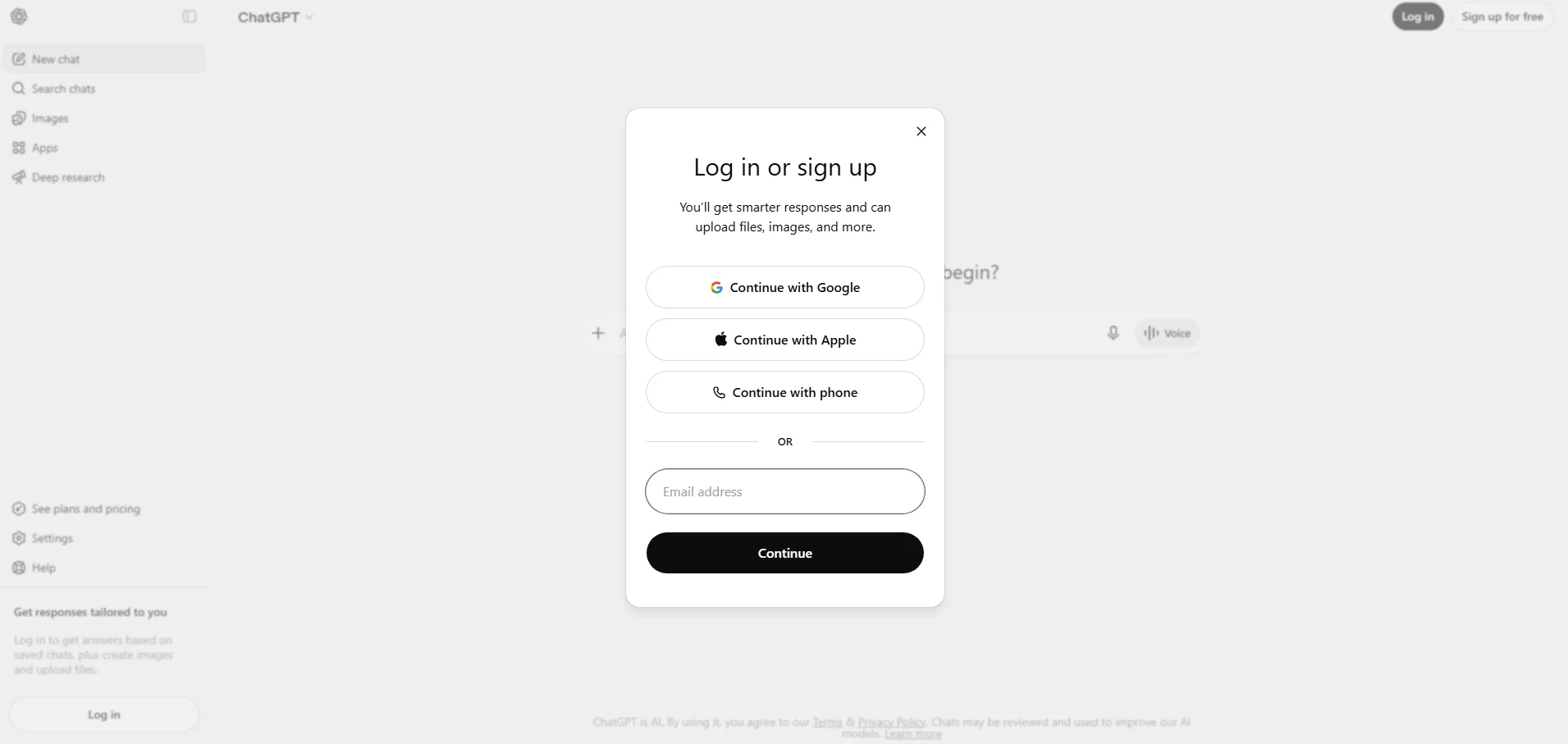
Setting up ChatGPT takes about three minutes. Head to chatgpt.com and click the Sign up button. You can register with an email address, a Google account, a Microsoft account, or an Apple ID. I prefer using email because it keeps my work and personal AI activity separate, but any method works.
Once you sign up, you will land on the ChatGPT dashboard with a free account. No payment details are required to start. OpenAI will ask you to verify your phone number to prevent spam, which is a one-time thing. After that, you can immediately start chatting.
One small tip from my own setup process: if you plan to use ChatGPT regularly for work, take a minute to complete your profile name and maybe upload an avatar. It doesn’t change the functionality, but it makes the interface feel a little more personal. You will also want to check your data settings, which I cover in the privacy section later. For now, you are ready to type your first prompt.
Understanding the ChatGPT Interface
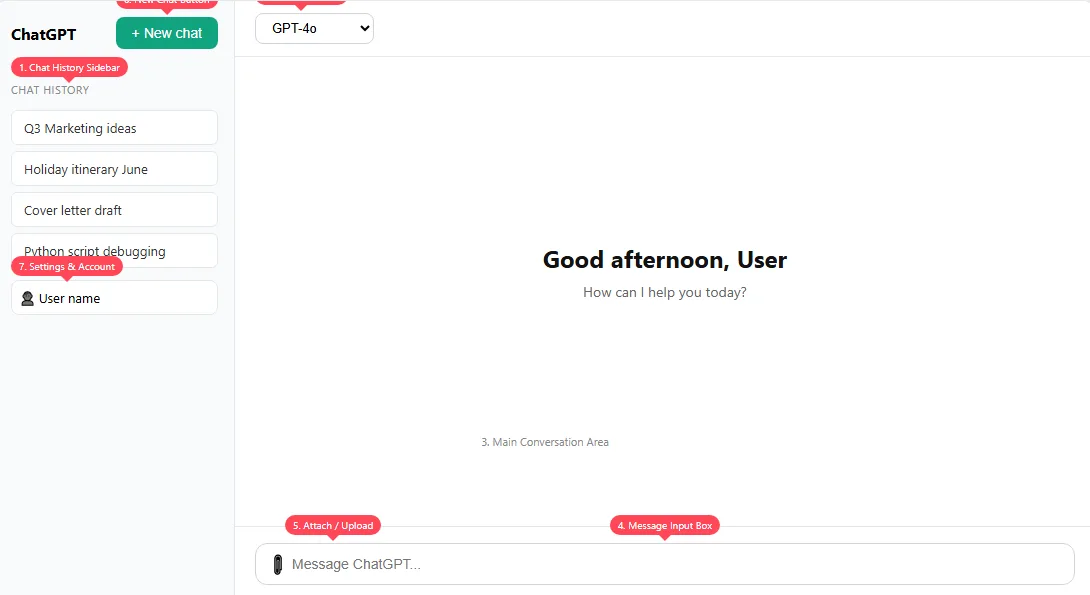
The interface is deliberately clean, but a quick tour saves you time. On the left-hand sidebar, you will see your chat history. Every conversation you start gets saved there automatically. You can rename a chat by clicking the pencil icon, which helps when you have dozens of threads about different projects. I typically rename chats with a project label like “Q3 marketing ideas” or “Holiday itinerary June 2026”.
The main area in the centre is where you type your message. The text box accepts plain text, but you can also upload files or paste images, depending on your plan. Above the input area, you will often see the model selector, where you can switch between available versions.
The top-right corner holds your account settings, theme toggle, and any active announcements. At the bottom of the sidebar, you might see links to upgrade your plan, explore custom GPTs, or access the help centre. The design has evolved a few times since I first started using it, but the core logic hasn’t changed: type, read, refine, repeat.
Free vs Plus: Which Plan Suits You?
OpenAI offers a free tier and a paid ChatGPT Plus subscription. I have used both extensively, so here is an honest breakdown.
| Feature | Free Plan | ChatGPT Plus |
|---|---|---|
| Core models | GPT-4o mini (limited) | GPT-4o, o1, o3-mini |
| Image generation | Limited DALL·E access | Higher limits and priority |
| File uploads | Basic support | Advanced data analysis, larger files |
| Voice conversations | Limited usage | Extended voice interactions |
| Web browsing / Search | Limited | More frequent and deeper |
| Response speed | Standard | Faster, especially during peak hours |
| Priority access | No | Yes during high demand |
| Monthly cost | Free | Around £20 (varies by region) |
If you only use ChatGPT occasionally for brainstorming or light writing, the free plan does the job. I kept my free account for months before upgrading, and I rarely felt blocked. The moment I switched to Plus was when I started using ChatGPT daily for client work and needed reliable access to the smarter model without hitting rate limits. The advanced voice mode alone can be worth the upgrade if you use it for language practice or on-the-go brainstorming.
My advice? Start free. Once you hit a wall, either with model intelligence or usage caps, then consider Plus. You can always cancel any time, and OpenAI occasionally offers trial periods.
How to Write Effective Prompts
This is the single most important skill in this entire guide. A prompt is simply what you type into the text box. The difference between a vague prompt and a well-structured one can be night and day. I have wasted entire afternoons wondering why ChatGPT wasn’t giving me what I wanted, only to realise my instructions were fuzzy.
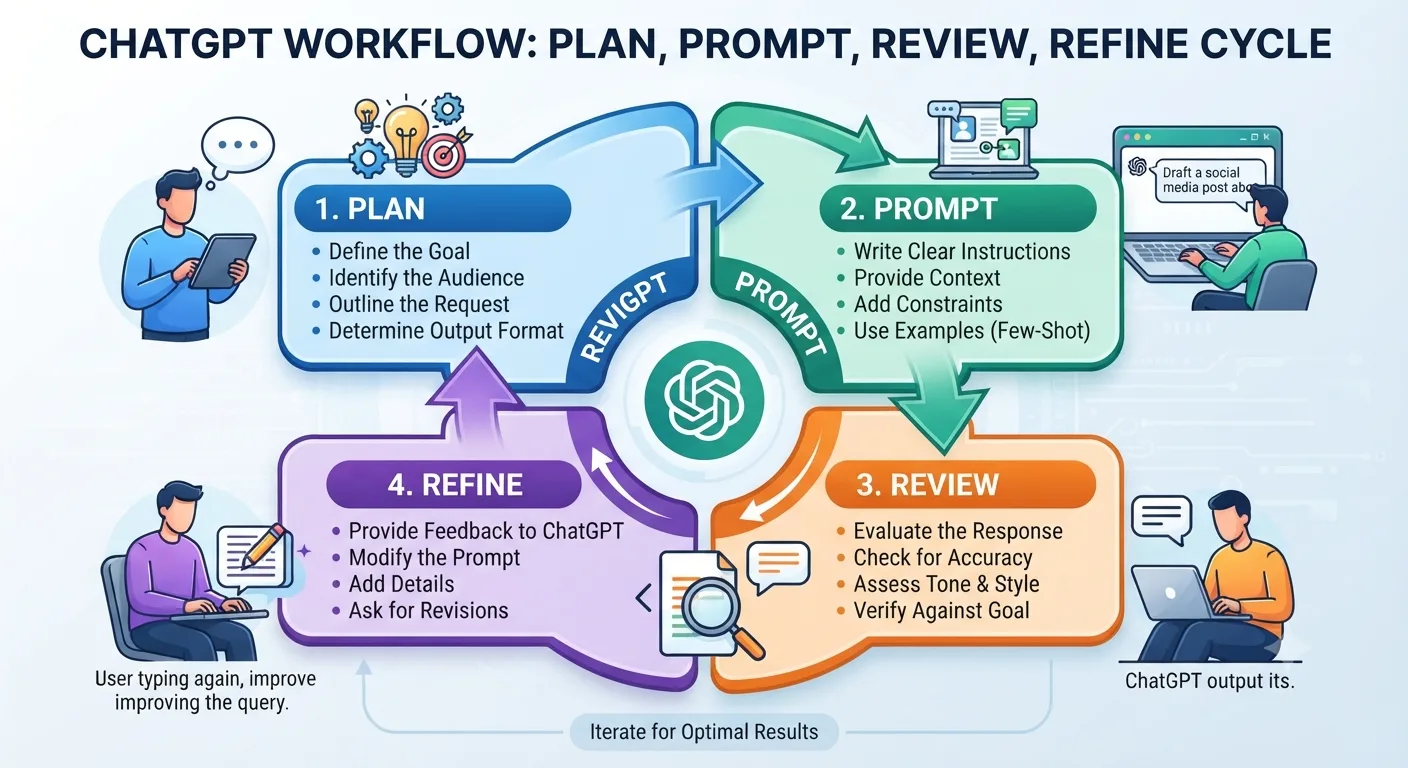
After months of daily use, I have settled on a simple four-part framework for most prompts:
- Role: Tell ChatGPT who to be. “Act as an experienced careers adviser” or “You are a friendly travel planner”.
- Context: Briefly explain the situation. “I am a final-year university student applying for marketing internships in London.”
- Task: Be specific about what you want. “Write a 250-word cover letter that highlights my two summer internships and my analytics skills.”
- Format or constraints: Add details like word count, tone, or structure. “Use a professional yet warm tone. Include a subject line and opening salutation.”
Here is a concrete before and after that I use when teaching friends.
Poor prompt: “Write a cover letter.”
Better prompt: “You are a hiring manager in the UK charity sector. I am a recent graduate with a degree in history and volunteer experience at a food bank. Write a cover letter for an administrative assistant role at a small non-profit. Keep it to three paragraphs, use British spelling, and end with a call to action requesting an interview.”
The output from the first prompt is generic and useless. The second prompt delivers something I could genuinely personalise and send. This shift in prompt quality took me from frustration to real productivity, and it will do the same for you.
Real-World Prompt Examples
I learn best by seeing actual examples, so here are a few prompts I have used recently, along with a snippet of what ChatGPT produced. These cover everyday scenarios you will probably recognise.
Example 1: Summarising a long article
> Prompt: “Summarise the following article in three bullet points suitable for a busy manager. Focus on the key findings and one actionable takeaway. [Pasted article text]”
ChatGPT output: (Bullet 1) The study found that hybrid workers report 12% higher job satisfaction than fully remote or office-based staff. (Bullet 2) The main driver was flexibility around school runs and caring responsibilities. (Bullet 3) Actionable takeaway: managers should agree core collaboration hours rather than mandating set office days.
Example 2: Meal planning with dietary restrictions
> Prompt: “I need a 5-day dinner plan for a family of four. We are vegetarian, two members are lactose intolerant, and we have a busy schedule so no recipe should take more than 30 minutes. Include a shopping list grouped by supermarket aisle.”
ChatGPT output: It produced a table with days, meal names, cook times, and a neatly categorised shopping list under Produce, Dairy Alternatives, Tinned Goods, etc. I used this last month before a holiday and it saved me an hour of mental load.
Example 3: Explaining a complex concept simply
> Prompt: “Explain how blockchain works to a 10-year-old who loves football trading cards. Use a card-collecting analogy, no technical jargon.”
ChatGPT output: It described a shared notebook where everyone writes down who owns which card, and once a trade is written, it can’t be erased because all friends have the same notebook. My nephew actually got it.
These examples show that the more specific you are, the more ChatGPT shines. It cannot read your mind, but it respects detailed instructions.
ChatGPT for Students
Students were among the earliest adopters of ChatGPT, and the tool can genuinely support learning when used honestly. I have helped a few university students set up study workflows, and the key is to treat ChatGPT as a tutor rather than a shortcut to finished assignments.
Effective study uses:
- Breaking down difficult textbook paragraphs into simpler language.
- Generating practice quiz questions before an exam.
- Explaining a historical event from multiple perspectives.
- Checking the logical flow of an essay outline (not writing the essay).
- Converting your lecture notes into a structured revision guide.
A prompt I often recommend to students: “You are a patient biology tutor. I am struggling to understand the Krebs cycle. Explain it step by step as if I am a beginner, using a cooking analogy. After the explanation, give me three questions to test my understanding.”
What to avoid: uploading an entire essay prompt and asking ChatGPT to write it. Apart from academic integrity issues, the output is often detectable and lacks genuine personal insight. Lecturers are getting better at spotting AI-generated work. Use the tool to learn, not to cheat.
For teachers reading this, I have a dedicated section later. But I want to stress that students who use AI to deepen understanding consistently outperform those who use it to dodge work. The habit of asking “why” and “how” while using ChatGPT builds critical thinking. The habit of copy-pasting does the opposite.
ChatGPT for Office Work and Productivity
I have used ChatGPT as a productivity sidekick for everything from drafting meeting agendas to polishing project proposals. The tool fits naturally into office workflows once you see it as a first-draft engine.
Common office tasks where ChatGPT excels:
- Converting bullet points into a professional email.
- Summarising long Slack threads or meeting transcripts.
- Drafting agendas with time allocations.
- Rephrasing complicated policy language into plain English.
- Generating a list of interview questions for a specific job role.
Here is a real scenario from my own work. I needed to write a project status update for a client. I gave ChatGPT a messy list of bullet points: what was done, what was pending, what risks I saw. The prompt was: “Turn these notes into a concise email for a client. Start with a positive highlight, then list progress, then flag one risk with a proposed mitigation. Keep it under 200 words. Use a confident but not pushy tone.” The draft needed only minor edits before sending.
One thing I noticed is that ChatGPT sometimes uses overly formal language like “I hope this email finds you well.” If that doesn’t match your voice, just tell it to sound more casual, or give it a sample of your writing style. Over time, it adapts. The memory feature (which I discuss later) helps with this.
If you work in an environment that handles sensitive data, be cautious. Never paste confidential company information into ChatGPT unless your organisation has an enterprise agreement and you understand the data handling policies. I address privacy in more detail later.
ChatGPT for Coding and Developers
Even if you have never written a line of code, ChatGPT can help you understand programming concepts or generate simple scripts. I am not a professional developer, but I maintain a few personal projects, and ChatGPT has been like having a senior developer on speed dial.
Practical coding tasks it handles well:
- Explaining what a piece of code does, line by line.
- Generating a Python script to automate a repetitive task (renaming files, pulling data from an API).
- Debugging error messages: paste the error and the relevant code snippet.
- Converting code from one language to another (e.g., JavaScript to Python).
- Writing unit tests for a function.
My favourite coding use case was when I needed to analyse survey results from a CSV file. I described the columns to ChatGPT, explained what I wanted (average satisfaction per region, sorted highest to lowest), and it produced a working Python script with pandas. The first version had a small bug, but I pasted the error back and it fixed it within seconds. That loop—generate, test, debug—is where the tool really accelerates learning.
For more complex software engineering, the o1 model often produces better-reasoned code. If you are serious about development, try the same prompt with both GPT-4o and o1 and compare the outputs. And remember, never run code you don’t understand on a production system without reviewing it thoroughly.
ChatGPT for Research and Learning
ChatGPT can accelerate the initial phase of research, but it is not a substitute for primary sources. I use it to get a lay of the land before diving into academic papers or official documents.
Effective research approaches:
- Ask for an overview of a topic with key terms and debates. “Give me a beginner-friendly overview of quantum computing, including the major unresolved challenges and current leaders in the field.”
- Request a list of credible sources on a topic (but always verify them, because it can invent plausible-sounding references).
- Use it to generate a research question framework. “I am writing a dissertation on urban green spaces and mental health. Suggest five possible research questions, each with a brief rationale.”
I always treat the information as a starting point. When I was researching for this guide, I asked ChatGPT about recent updates to the ChatGPT interface. It mentioned a few features that, upon checking the official OpenAI release notes, were slightly outdated. That reminded me why I cross-check everything. For academic or professional research, view ChatGPT as your brainstorming partner, not your evidence base.
For teachers and students, if you want to understand where ChatGPT fits in the broader AI landscape, the Types of Artificial Intelligence article adds useful context.
ChatGPT for Writing and Content Creation
As a writer, I have a love-hate relationship with AI writing tools. They are excellent at breaking through writer’s block, generating outlines, and suggesting alternative phrasing. They are terrible at writing from genuine personal experience. The best results come from blending human insight with AI efficiency.
Ways I genuinely use ChatGPT for writing:
- Brainstorming 20 headline ideas for an article, then picking my favourite and refining it.
- Creating a detailed outline when I know the topic well but feel overwhelmed by structure.
- Rephrasing a clunky sentence. I paste it in and ask, “Make this sentence flow better, keep my voice.”
- Drafting social media posts in different lengths for LinkedIn, X, and Instagram.
- Generating a meta description for SEO (yes, I used it for an early draft of this article’s meta description, then edited it heavily).
The trap to avoid is accepting its prose uncritically. ChatGPT writing tends to be polished but flat. It leans on safe, balanced statements and overuses words like “significant”, “crucial”, and “notable”. After a while, you develop an ear for AI rhythm. I always inject my own stories, observations, and a bit of personality to make the content feel human.
If you are a content creator who also works with other AI assistants, you might compare outputs. Our Claude AI Guide covers another popular model that many writers prefer for its more nuanced prose. Different tools suit different writing styles.
ChatGPT for Marketing and Small Businesses
Small business owners often wear ten hats. ChatGPT can lighten the marketing load without needing a dedicated team. I have worked with a few independent shop owners and freelancers to set up simple AI workflows, and the time savings can be dramatic.
Practical marketing tasks:
- Drafting weekly newsletters. Feed in the week’s updates as bullets and get a ready-to-send draft.
- Writing product descriptions for an online store, optimised for search.
- Generating content ideas for a 30-day social media calendar.
- Creating customer persona profiles based on your target audience data.
- Replying to routine customer enquiries with consistent, friendly messaging.
Here is a prompt I wrote for a small bakery owner: “You are a friendly neighbourhood bakery. Write a warm Instagram caption for a photo of our new sourdough loaf. Mention that it’s made with a 48-hour ferment, hint at limited availability, and end with an invitation to pre-order via the link in bio. Keep it under 150 words, use emojis lightly.”
The output captured the tone so well that the owner now uses variations of that prompt weekly. For more complex customer service workflows, AI tools are reshaping support teams entirely. We have covered that shift in AI Customer Support, which explores how businesses combine human oversight with AI efficiency.
One caution for business owners: AI-generated marketing copy still needs a human review for factual accuracy and brand voice. If a product claim is incorrect, the responsibility falls on you, not the tool. Being transparent about using AI can also build trust, a topic we explore in How AI Builds Business Credibility and Trust.
ChatGPT for Teachers and Educators
Many of the teachers I know have gone from being wary of ChatGPT to incorporating it thoughtfully into their lesson preparation. It doesn’t replace the art of teaching, but it does take some grunt work off the plate.
Ways educators can use ChatGPT:
- Creating differentiated reading materials for mixed-ability classes. “Rewrite this textbook passage at a Year 7 reading level while keeping the core concepts intact.”
- Generating lesson starter activities. “Give me five quick warm-up questions on the causes of the First World War, ranging from recall to analysis.”
- Drafting rubric descriptors for assignments.
- Producing model answers that students can critique.
- Automating feedback on common grammatical errors, freeing up time for higher-order feedback.
A secondary school history teacher I know uses ChatGPT to build “mystery box” thinking activities. He gives the AI a historical event and asks it to describe clues one by one, which students then piece together. It takes him ten minutes to set up instead of an hour.
The honest limitation is that ChatGPT sometimes includes inaccuracies in subject-specific content. I advise teachers to treat its output like a teaching assistant’s first draft: useful, but needing an expert eye before it reaches students.
ChatGPT on Mobile and Voice Mode
The ChatGPT mobile app for iOS and Android brings the same core experience to your phone, with one big addition: voice mode. I use the app during my commute for hands-free brainstorming.
Standard voice mode lets you speak your prompt and hear the response spoken back. It works well for quick questions, language practice, or when your hands are busy. The more advanced voice mode, available to Plus subscribers, feels far more natural. It responds with realistic intonation, handles interruptions, and even laughs at jokes (sort of). I have used it to practise conversational French while cooking dinner, and it corrected my pronunciation gently, like a patient tutor.
The mobile app also supports image upload, so you can snap a photo of a whiteboard, a recipe, or a plant you want identified, and ask about it directly. One evening I photographed a dusty circuit board in my garage, and ChatGPT identified the components and suggested how to test them. That kind of real-world, visual assistance was sci-fi a few years ago.
If you haven’t tried the app yet, download it, sign in with the same account, and give voice mode a go. It might feel strange at first, but after a week you might find yourself reaching for it as often as you do your notes app.
Image Generation, File Uploads, and Memory
Beyond plain text, ChatGPT can generate images, analyse uploaded files, and remember things about you across conversations. Each feature deserves a quick walkthrough.
Image generation: Using DALL·E integration, you can describe an image and ChatGPT will create one. The prompt “A watercolour painting of a fox reading a book under a tree in autumn” produces artwork in seconds. For business, I have used it to generate placeholder graphics for presentation slides and social media posts. The images are often good enough for internal use, though professional branding usually needs a human designer’s touch.
File uploads: You can upload PDFs, spreadsheets, images, and code files. ChatGPT can summarise a contract, extract data from a messy spreadsheet, or transcribe handwritten notes from a photo. I once fed it a 40-page industry report and asked for a one-page executive brief. It produced a clean summary that I reviewed and sent to my team after minor corrections. The file upload feature alone can save hours every week.
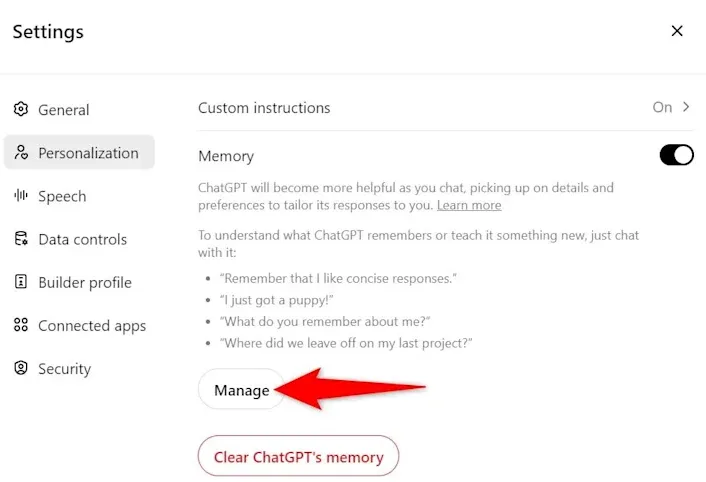
Memory: OpenAI has introduced a memory feature that lets ChatGPT remember facts you tell it. For example, if you mention that you are a freelance graphic designer based in Manchester, it can recall that in later chats to give more relevant suggestions. You can view and manage what it remembers in your settings. I find memory particularly helpful for repeated writing tasks where consistent tone matters. It is also worth saying you can delete any memory item or turn the feature off completely if you prefer a blank slate each time.
Projects and Search
OpenAI has added a feature called Projects, which organises your chats into folders. It helps when you juggle multiple long-running topics, like a university dissertation, a side business, and personal fitness planning. I use Projects to group all conversations about this guide, keeping the research separate from my other writing. It is a small organisational touch that reduces mental clutter.
The Search feature, which used to be called Browse, lets ChatGPT fetch current information from the web. When you enable it or when ChatGPT decides it needs fresh data, you will see a “Searching the web” indicator. I use this to check recent news, compare product prices, or verify facts that are beyond its training cut-off. The search capability makes ChatGPT far more useful for time-sensitive questions, but it still relies on the quality of sources it finds, and occasionally pulls from less authoritative sites. Treat it like a quick research assistant rather than a final authority.
Common Beginner Mistakes (And How to Avoid Them)
I have made every one of these mistakes at some point. Spotting them early will save you a lot of frustration.
- Being too vague: “Tell me about marketing” produces a textbook definition. “Give me five low-budget marketing tactics for a new online vintage clothing shop targeting university students in the UK” is worlds apart.
- Trusting everything it says: ChatGPT can invent facts, names, and citations with complete confidence. Always verify.
- Not iterating: The first response is rarely perfect. Follow up with “make it shorter”, “change the tone to more formal”, or “add an example”.
- Ignoring context windows: Very long chats can cause the model to forget earlier instructions. Start a fresh chat for new topics.
- Using one chat for everything: You get better results by separating distinct tasks into different conversation threads.
- Forgetting about the model selector: If an answer feels lacklustre, try switching to a different model before rewriting your prompt.
- Overcomplicating prompts: Clarity beats cleverness. Simple, direct language works better than elaborate role-playing unless the task genuinely needs it.
The common thread here is that ChatGPT rewards thoughtful engagement. If you treat it like a search bar, you get search-bar-level results. Treat it like a collaborator, and you unlock its real value.
Privacy and Safety Tips
Privacy concerns are valid, and I take them seriously. OpenAI stores conversation data to improve its services, but you have control over how your data is used.
Key settings to check:
- In the ChatGPT settings, you can turn off “Improve the model for everyone”. This means your conversations won’t be used for training.
- You can delete individual chats or your entire history.
- Temporary chats are available; they are not saved and are automatically deleted after the session.
- For business use, OpenAI offers enterprise plans with stronger data handling guarantees. If you are handling sensitive client data, look into ChatGPT Team or Enterprise rather than the consumer product.
Never share passwords, financial details, or personally identifiable information of other people. I treat ChatGPT like a public café conversation: great for discussing ideas, not for exposing sensitive secrets.
For official and up-to-date details on data usage, check OpenAI’s privacy policy and help centre directly. It changes occasionally, so a periodic review is wise.
Limitations of ChatGPT
Being upfront about what ChatGPT cannot do builds trust and prevents embarrassing mistakes. These are the limitations I encounter most often:
- Factual accuracy: It hallucinates, particularly with niche academic references, statistics, or recent events.
- Real-time awareness: Without Search enabled, its knowledge has a cut-off date. As of this writing, that is mid-2025 for some models, but check the official documentation for the latest.
- Complex multi-step reasoning: While improving, it can stumble on long logic chains or intricate maths without the right model and prompting.
- True creativity: It remixes existing patterns. Genuinely novel artistic or scientific breakthroughs remain a human domain.
- Emotional understanding: It can simulate empathy convincingly, but it doesn’t feel anything. If you need mental health support, please reach out to a qualified human professional.
- Consistency across long documents: A 50-page manuscript might cause it to lose track of earlier sections.
- Bias: Because it learns from internet text, it can reflect societal biases present in that data. OpenAI works on mitigating this, but it is an ongoing challenge.
Knowing these limits doesn’t make ChatGPT less useful. It makes you a smarter user. I still use it daily, but I never outsource my judgement.
Best Practices for Using ChatGPT Effectively
After hundreds of hours with the tool, these are the habits that consistently produce the best results for me:
- Start a fresh chat for new topics. This avoids confusing the model with old context.
- Iterate, don’t abandon. Your first prompt is a draft. Refine it after seeing the initial response.
- Give feedback. Use the thumbs-up/thumbs-down buttons. It helps the model improve and also helps you notice patterns in what works.
- Combine ChatGPT with other tools. Use it alongside search engines, spreadsheets, and your own expertise.
- Keep a swipe file of great prompts. When you find a prompt structure that works, save it in a notes app.
- Set aside time to explore. Once a week, try something new: a different model, an image prompt, a voice conversation in a foreign language.
- Stay informed. AI moves fast. The ChatGPT Hub on RCN Guide and official OpenAI announcements are good places to keep track of new features without getting overwhelmed. We maintain a dedicated ChatGPT Hub with updates and advanced tutorials for when you are ready to go deeper.
Above all, remember that ChatGPT is a tool, not a replacement for your own thinking. The people who benefit most are those who use it to amplify their skills, not to bypass the learning process.
Frequently Asked Questions
1. What is ChatGPT?
ChatGPT is an AI-powered chatbot developed by OpenAI. It uses a large language model to understand and respond to text inputs in natural, conversational language. It can help with writing, coding, research, idea generation, and many everyday tasks. Think of it as a flexible digital assistant that draws on a huge amount of text data to produce useful replies, though it doesn’t truly think or understand the world.
2. Is ChatGPT free?
Yes, there is a free tier with access to GPT-4o mini and limited access to more powerful models. A paid ChatGPT Plus plan costs around £20 per month and offers extended access to smarter models, faster responses, advanced voice mode, and additional features like higher image generation limits and priority during busy periods. You can start with the free plan and upgrade if needed.
3. How do I sign up for ChatGPT?
Go to chatgpt.com and click Sign up. You can register with an email address, Google account, Microsoft account, or Apple ID. After verifying your phone number for security, you can start using the service immediately. No payment information is required for the free tier.
4. Can ChatGPT write code?
Absolutely. ChatGPT can generate code in Python, JavaScript, HTML/CSS, SQL, and many other languages. It can also debug errors, explain code line by line, and translate between programming languages. However, always review and test generated code before running it, especially in important systems, because it can contain subtle bugs or security flaws.
5. Does ChatGPT have a mobile app?
Yes, there is an official ChatGPT app for iOS and Android. It includes all the core chat features plus voice input, image uploads, and voice conversation modes. Your account syncs across devices, so you can switch from desktop to mobile seamlessly.
6. Can ChatGPT search the internet?
With the Search feature enabled, ChatGPT can access current web information to answer questions about recent events, check facts, or pull in live data. The feature is available to all users with some limits on the free plan. ChatGPT will indicate when it is searching the web, and you can manually trigger it or let the model decide when browsing is helpful.
7. What is the difference between GPT-4 and GPT-4o?
GPT-4 is an earlier large language model. GPT-4o is a newer, multimodal version that handles text, images, and audio more efficiently and with faster response times. GPT-4o offers better performance on many tasks and is the default model for ChatGPT Plus users. The “o” stands for “omni”, reflecting its ability to work across multiple modalities.
8. Can ChatGPT generate images?
Yes, through DALL·E integration. You can describe the image you want, and ChatGPT will generate it. The quality has improved significantly, and you can ask for specific styles, aspect ratios, and levels of detail. Free users get limited image generation credits, while Plus subscribers have higher limits.
9. How does ChatGPT memory work?
Memory allows ChatGPT to remember useful information you share across conversations. For example, you might tell it that you prefer bullet-point summaries or that you are a teacher planning lessons. It uses these memories to give more personalised responses. You can view, delete, or disable memory in your account settings at any time.
10. Is my data safe with ChatGPT?
OpenAI stores conversation data but gives you controls. You can opt out of having your chats used for model training, delete your history, and use temporary chats that aren’t saved. For businesses handling sensitive data, enterprise plans offer stronger security and data processing agreements. Never share passwords, financial data, or sensitive personal information with any AI tool.
11. Can I use ChatGPT for schoolwork?
You can use it as a learning assistant to help explain concepts, generate practice questions, or review your work. However, submitting AI-generated content as your own is likely against your school’s academic integrity policy. Use ChatGPT to deepen understanding, not to bypass learning. Always check with your teacher about permitted AI use.
12. How accurate is ChatGPT?
ChatGPT can produce highly accurate outputs, but it also makes mistakes. It can invent facts, misattribute quotes, and confidently give wrong answers. Its accuracy depends on the task, the model, and the quality of your prompt. Always verify important information from primary or trusted sources.
13. Can I upload files to ChatGPT?
Yes, Plus and higher-tier users can upload documents, spreadsheets, images, and code files. ChatGPT can read the content, analyse data, summarise, or answer questions based on the file. Free users get more limited file upload support. The feature is especially handy for extracting insights from PDFs or messy data sets.
14. What are custom GPTs?
Custom GPTs are specialised versions of ChatGPT that you can tailor for specific tasks without coding. You can create one by giving it instructions, uploading reference files, and selecting capabilities like web browsing or image generation. For example, you could build a custom GPT that knows your brand voice and always writes in your style. They are available to Plus subscribers and can be shared with others.
15. Can ChatGPT translate languages?
Yes, ChatGPT handles translation between many language pairs effectively. It can translate casual conversations, formal documents, and even explain nuances like regional differences or tone. It is not a replacement for professional human translation in high-stakes legal or medical contexts, but for everyday use it is reliable and fast.
16. Does ChatGPT work offline?
No, ChatGPT requires an active internet connection. The AI models run on OpenAI’s servers, and your device sends prompts and receives responses online. There is no offline mode currently available for the consumer product.
17. Can ChatGPT listen and speak?
Yes, through the voice mode on the mobile app. You can speak your prompts and hear responses read aloud. The standard voice mode works well, while the advanced voice mode available to Plus users offers more natural, interruptible conversation with realistic intonation and emotional expression.
18. What should I avoid typing into ChatGPT?
Do not share passwords, bank details, private identification numbers, or any confidential third-party information. Also avoid asking for legal, medical, or financial advice that you intend to act on without consulting a qualified professional. ChatGPT is a general-purpose assistant, not a certified expert.
19. How do I delete my ChatGPT history?
In the left sidebar, you can delete individual chats by clicking the three dots next to a chat name and selecting Delete. To clear your entire history, go to Settings, then Data Controls, and choose Delete All Chats. You can also archive chats to declutter without permanent deletion.
20. How is ChatGPT different from Claude or Google Gemini?
ChatGPT, Claude (from Anthropic), and Gemini (from Google) are all capable AI assistants, but they have different strengths. ChatGPT offers a broad feature set with image generation, voice mode, and a huge user community. Claude is often praised for nuanced writing and longer context windows. Gemini integrates tightly with Google’s ecosystem. For a closer look at Claude, see our Claude AI Guide. The best choice depends on your workflow, and many people use more than one.
21. Can ChatGPT help with job applications?
Yes, it can help draft CV summaries, tailor cover letters, suggest answers to common interview questions, and optimise your LinkedIn profile. Always customise the output to reflect your genuine experience. Recruiters can spot generic AI language, so use it as a starting point, not a final draft.
22. Is there a limit to how long a conversation can be?
ChatGPT has a context window, which is the amount of text it can keep in memory during a single chat. Once that window fills up, the model may lose track of earlier parts of the conversation. For very long projects, start fresh chats for major topic shifts or occasionally summarise the key points yourself and feed them back in.
Final Thoughts
Learning to use ChatGPT effectively is not about mastering a piece of software. It is about building a relationship with a new kind of tool, one that rewards clarity, curiosity, and critical thinking. The people I see benefiting most are the ones who experiment, make mistakes, refine their prompts, and never fully trust the output without their own judgement.
If you remember only three things from this guide, let them be these: be specific in your requests, treat the responses as first drafts, and keep your own thinking firmly in the driver’s seat. AI is a powerful assistant, but it works best when guided by a thoughtful human.
The landscape will keep evolving. New models will arrive. Features will change. But the fundamental skill of communicating clearly with an AI will remain valuable for years to come. I hope this guide gives you the confidence to start that journey.
For more tutorials, comparisons, and the latest AI developments, bookmark our ChatGPT Hub here on RCN Guide. We regularly update our resources to match the pace of change, without the hype.
RCN Guide Editorial Team researches and tests AI tools, emerging technologies, software platforms and productivity solutions. Every guide is reviewed for accuracy, clarity and practical usefulness so readers can make informed decisions.
Use the key points in this guide to understand the topic and make more informed decisions.

This guide is researched and edited using relevant documentation, reliable sources and publicly available information.
Was this guide helpful?
Your feedback helps us improve future guides.