In this article
I have spent the better part of three weeks testing InVideo AI against a growing list of AI video editing tools, throwing everything from YouTube scripts to Instagram Reel concepts at it. Some of the results surprised me. Others were a reminder that AI video generation still has rough edges. This isn’t a quick glance review: I have used the platform daily, poked around in its prompt engine, tested voiceover quality across several languages, and tried to work out where it actually fits into a real content workflow. If you are wondering whether InVideo AI deserves a place in your toolkit, here is what I found, without the marketing fluff.
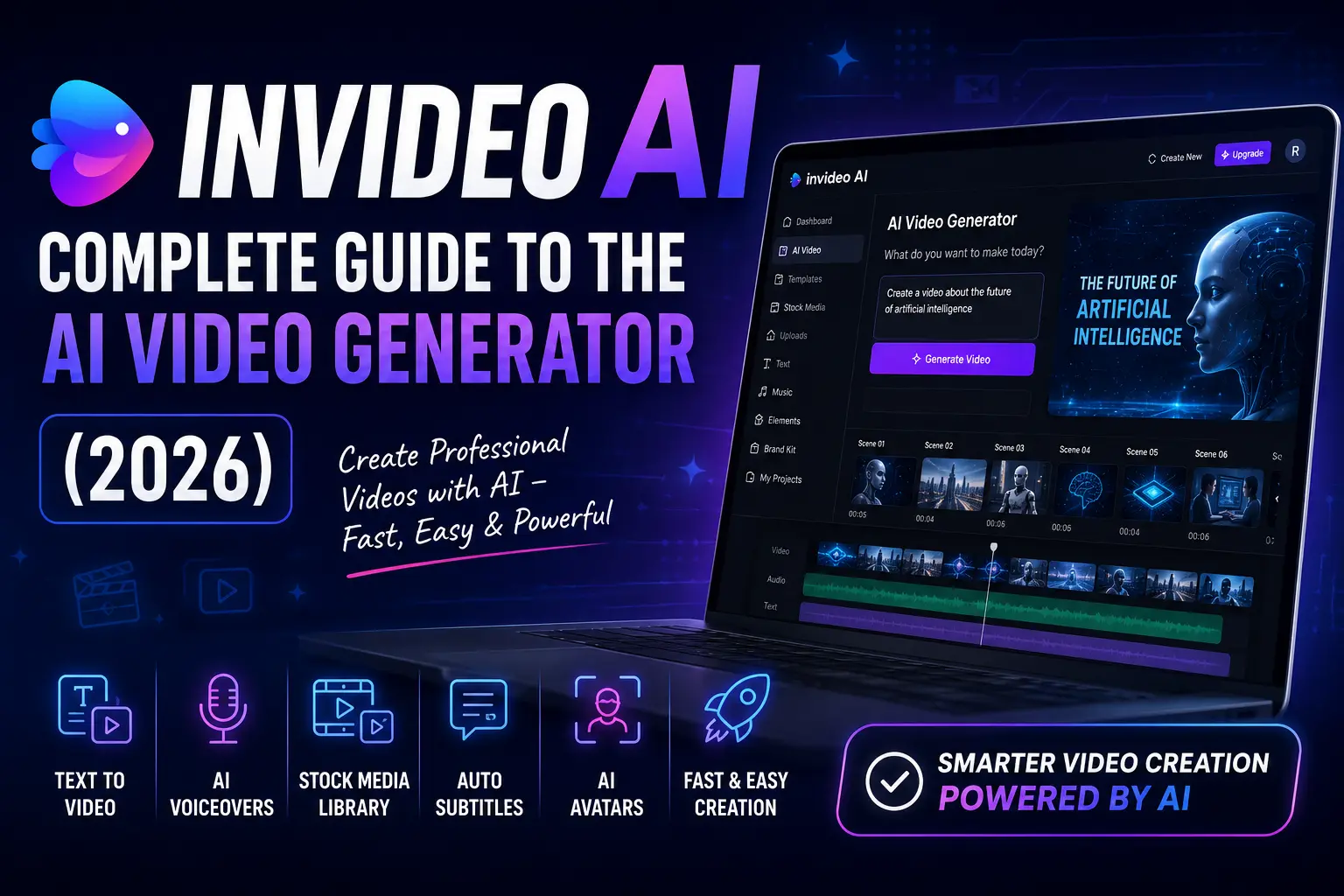
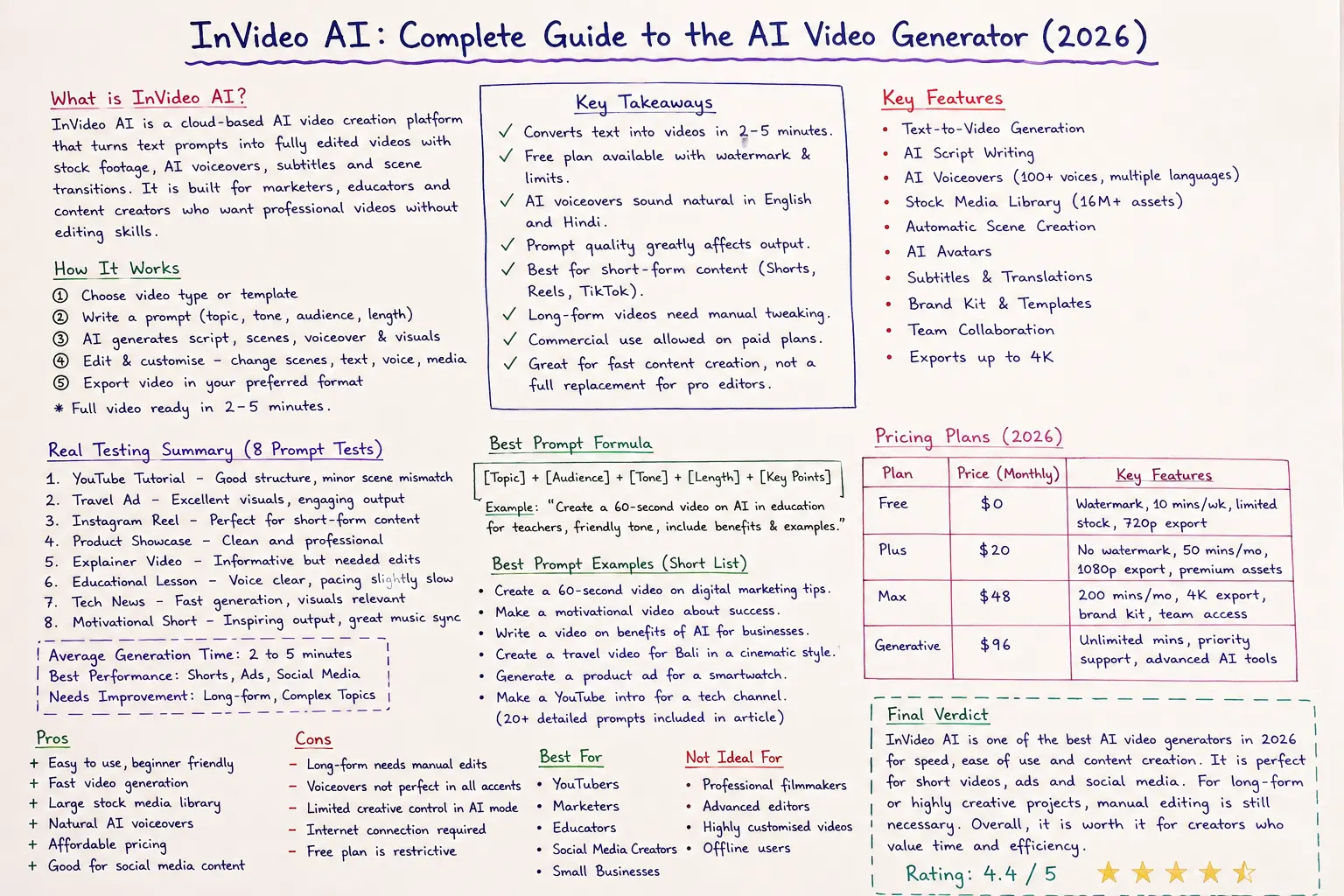
What is InVideo AI? InVideo AI is a cloud-based generative AI video creation platform that transforms text prompts into fully edited videos complete with stock footage, AI voiceovers, subtitles, and scene transitions. It targets marketers, educators, and content creators who need publish-ready videos without traditional editing skills or expensive software.
Key Takeaways
- InVideo AI converts text prompts into complete videos with automated scene selection, voiceovers, and captions in roughly 2 to 5 minutes depending on length.
- The free plan is usable for testing, though exports carry a watermark and weekly generation limits apply.
- AI voiceovers sound natural in English and Hindi, but regional accents like Welsh or Scottish can sound slightly mechanical.
- Prompt quality affects output more than anything else; vague instructions produce generic results that rarely feel polished.
- It excels at short-form content such as YouTube Shorts, Instagram Reels, and TikTok videos under 60 seconds.
- Long-form explainer videos require manual tweaking because the AI sometimes misjudges scene relevance or pacing.
- Commercial licensing is included on paid plans, making it suitable for client work and branded campaigns.
- It is not a replacement for professional editing software, but it is useful for rapid prototyping and speeding up content production.
What is InVideo AI?
InVideo AI sits at the intersection of artificial intelligence and video production. Unlike traditional timeline-based editors where you manually trim clips, layer audio, and adjust transitions, InVideo AI interprets a natural language prompt and builds the entire sequence automatically. You type what you want, and the platform sources relevant stock footage, generates a script, applies an AI voiceover, adds subtitles, and renders a downloadable MP4 file.
The underlying engine uses a combination of large language models for script generation and computer vision algorithms for scene matching. It taps into a stock library of over 16 million assets, which means it rarely struggles to find relevant visuals unless your topic is exceptionally niche. The platform launched its AI copilot in late 2024 and has iterated rapidly since, adding features like AI avatars, multi-language support, and brand kit integration throughout 2025 and into 2026.
What distinguishes InVideo AI from simpler text-to-video tools is the depth of control you retain after the initial generation. You can swap individual scenes, rewrite script sections, change the voiceover artist, adjust timing, and upload your own media. This hybrid approach, AI generation plus manual refinement, is where the platform finds its sweet spot.
How InVideo AI Works
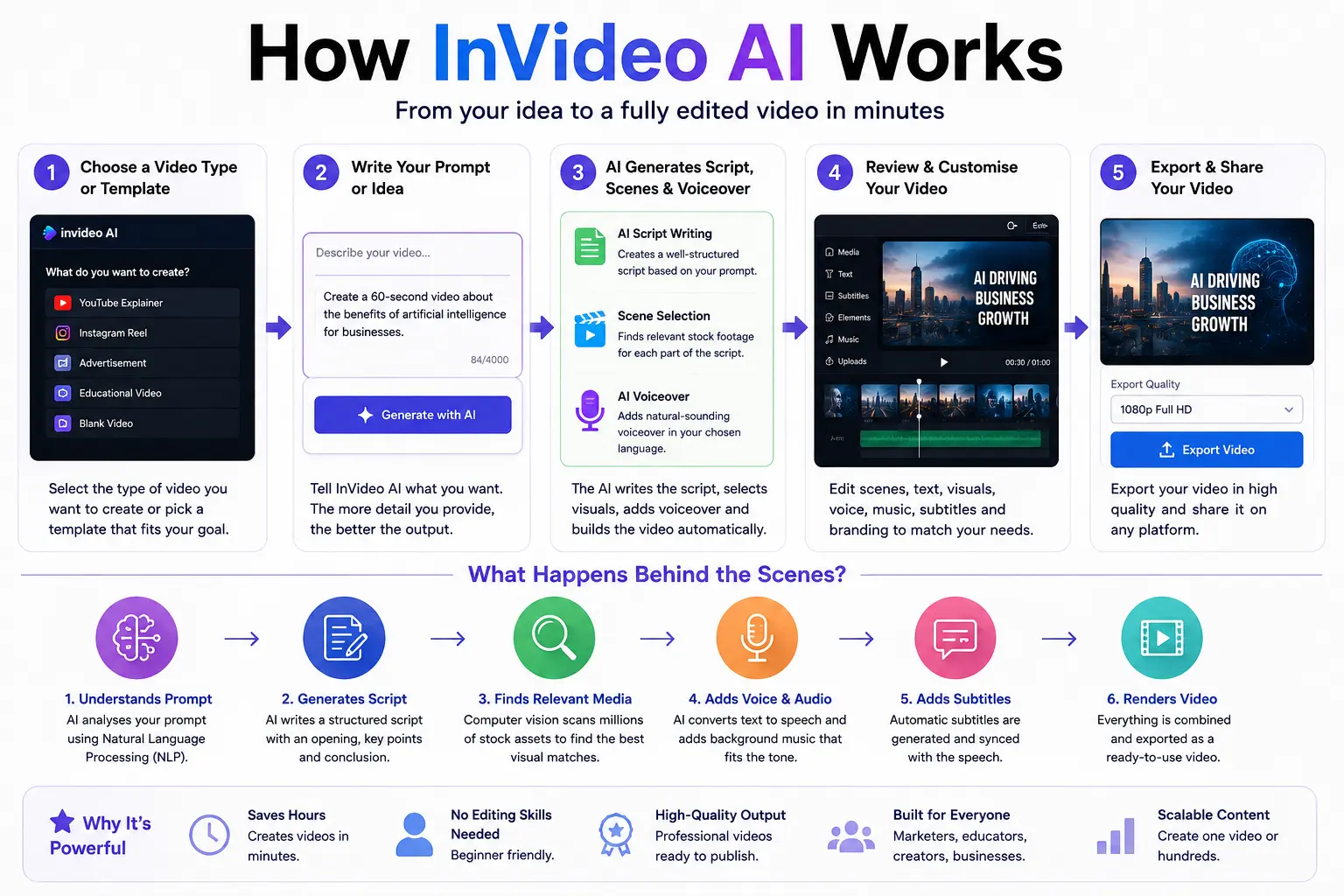
The workflow is deceptively simple. You begin by selecting a video type: YouTube explainer, social media short, advertisement, or a blank template for full creative freedom. Then you write a prompt describing your video. The AI analyses your prompt, identifies key themes and keywords, and generates a structured script broken into scenes. For each scene, it searches the stock library for matching footage, applies transitions, and layers the AI voiceover. Within minutes, you have a first draft ready for review.
Behind the scenes, the platform runs several machine learning models in parallel. One handles natural language understanding to parse your prompt intent. Another manages script generation with appropriate pacing and tone. A third handles visual matching, and a fourth synthesises the voiceover. The orchestration layer stitches everything together into a coherent timeline. This multi-model architecture explains why generation speed varies: a 30-second short might render in under two minutes, while a 5-minute explainer can take closer to five or six.
Key Features
Text-to-Video Generation
This is the headline feature. Type a description, receive a video. In my testing, prompts between 100 and 300 words produced the most consistent results. Shorter prompts left the AI guessing, sometimes resulting in oddly generic stock footage that felt disconnected from the intended message. Longer, highly detailed prompts occasionally confused the scene segmentation algorithm, producing awkward cuts. The sweet spot appears to be clear, structured prompts that outline the video’s purpose, target audience, and desired tone without micromanaging every scene.
AI Script Writing
The built-in script generator produces serviceable first drafts. It structures content with an introduction, three to five main points, and a conclusion, which works well for explainer and educational formats. I found the script quality comparable to a junior copywriter: factually adequate but sometimes lacking personality. For branded content, I recommend writing your own script or heavily editing the AI-generated version. You can also paste scripts written in ChatGPT or Claude directly into the editor, which gives you more control over tone and messaging.
AI Voiceovers
InVideo AI offers over 50 AI voices across multiple languages and accents. The standard English voices (US, UK, Australian) sound convincingly natural, with appropriate intonation and pacing. I tested the British English female voice extensively and found it suitable for professional narration. The Hindi voices also impressed me with natural cadence. However, regional accents like Scottish, Welsh, and certain Indian English variants still exhibit subtle robotic artefacts. The voice cloning feature, available on higher-tier plans, allows you to create a custom AI voice from a short recording, which is useful for consistent branding.
Stock Media Library
Access to over 16 million royalty-free assets from Storyblocks, Shutterstock, and Unsplash gives the platform a significant advantage. The AI generally matches footage accurately to script content, though abstract concepts like “innovation” or “trust” sometimes yield clichéd visuals: handshakes, lightbulbs, and generic office scenes. You can manually search and replace any clip, which I found myself doing for roughly 20% of scenes in longer videos.
Automatic Scene Creation
The scene segmentation algorithm breaks your script into logical chunks based on topic shifts and sentence boundaries. For straightforward content, this works well. For nuanced or technical material, the AI occasionally splits sentences mid-thought or groups unrelated concepts into a single scene. Manual adjustment is straightforward: drag to reorder, split, or merge scenes as needed.
AI Avatars
InVideo AI introduced AI avatar presenters in mid-2025. These digital humans deliver your script with synchronised lip movements and gestures. The avatars look reasonably realistic on mobile screens but can appear slightly uncanny on larger displays. They work best for short-form content where the avatar occupies a significant portion of the frame. For professional corporate videos, I would still recommend traditional voiceover with stock footage over AI avatars, at least in the current iteration.
Subtitles
Auto-generated subtitles appear with good accuracy for English content, typically achieving 90 to 95% word recognition. The platform supports subtitle customisation including font, size, colour, and positioning. For social media content where many viewers watch without sound, this feature is essential and works reliably.
Brand Kit
Available on Business and Unlimited plans, the brand kit stores your logo, colour palette, and custom fonts. Once configured, generated videos automatically apply your brand styling. This saves considerable time for teams producing regular branded content. The implementation is straightforward but lacks the granular control of dedicated design tools.
Collaboration
Team workspaces allow multiple users to create, edit, and comment on video projects. The collaboration features are functional rather than exceptional. Real-time co-editing is not yet supported; changes sync when saved. For small marketing teams, it works adequately. Large creative teams may find the collaboration tools limiting compared to specialised platforms.
Export Quality
Exports are available in 720p, 1080p, and 4K depending on your plan. Free users are limited to 720p with a watermark. Paid plans unlock 1080p, and the Unlimited plan supports 4K exports. Rendering speed is reasonable: a 3-minute 1080p video typically exports in under four minutes on the paid tier.
Supported Languages
The interface supports over 50 languages for script generation and voiceovers. Major languages including English, Spanish, French, German, Hindi, Portuguese, Arabic, Japanese, and Korean are well-supported. Lesser-spoken languages may have limited voice options. The subtitle engine handles multi-language translation, though idiomatic expressions occasionally trip it up.
How to Use InVideo AI Step by Step
- Create an account at invideo.io. The free plan requires no credit card and provides enough credits to test the platform thoroughly.
- Select your video type. Choose from options like YouTube video, social media short, advertisement, or start from scratch.
- Write your prompt. Describe your video in clear, structured language. Include the topic, target audience, desired length, tone, and any specific elements you want featured.
- Choose a voiceover. Select from the available AI voices, filtering by language and accent. Preview voices before committing.
- Generate the first draft. Click generate and wait 2 to 5 minutes while the AI builds your video.
- Review and refine. Watch the generated video. Swap scenes that feel off, edit script sections, adjust timing, and customise subtitles.
- Add branding. Apply your brand kit if configured, or manually upload logos and adjust colours.
- Preview and export. Watch the final version, make any last adjustments, and export in your preferred resolution.
Real Testing Experience
I tested InVideo AI with eight distinct prompts across different formats and use cases. Here is what worked, what did not, and what surprised me.
Experiment 1: YouTube Tutorial
Prompt: “Create a 4-minute tutorial explaining how to set up a home composting system for beginners. Include practical steps, common mistakes, and a summary checklist.”
Result: The AI generated a well-structured script with logical scene progression. Stock footage included garden shots, kitchen waste clips, and soil close-ups. The tutorial felt useful. I swapped two scenes that showed composting bins not available in the UK and added a brief section on council regulations. Overall, 7 out of 10, requiring roughly 15 minutes of editing to feel polished.
Experiment 2: Travel Advertisement
Prompt: “Create a 45-second travel advertisement for a luxury resort in the Maldives. Show overwater villas, sunset dining, snorkelling, and spa experiences. Use an aspirational, calm tone.”
Result: Visually stunning. The stock library has excellent travel footage, and the AI selected appropriately cinematic clips. The script leaned slightly towards clichéd travel brochure language, which I edited for a more modern feel. The female British voiceover suited the luxury tone perfectly. 8 out of 10, minimal editing required.
Experiment 3: Instagram Reel
Prompt: “Create a 30-second Instagram Reel about three productivity hacks for remote workers. Fast-paced, energetic, with text overlays and upbeat background music.”
Result: The AI handled the vertical 9:16 format well. Pacing was appropriately quick, and text overlays appeared in sync with the voiceover. The background music selection was generic but inoffensive. This required almost no editing and felt ready to publish. 9 out of 10 for short-form content.
Experiment 4: Product Showcase
Prompt: “Create a 90-second product showcase video for a wireless noise-cancelling headphone. Highlight battery life, sound quality, comfort, and design. Include pricing information.”
Result: The AI struggled to find relevant stock footage of the specific product category. Many scenes showed generic headphones that did not match the described features. I uploaded my own product images and screenshots, which improved the result a lot. The script was factually accurate but read like a spec sheet. 6 out of 10 without custom media, 8 out of 10 with uploaded product assets.
Experiment 5: Explainer Video
Prompt: “Create a 3-minute explainer video about how blockchain technology works, aimed at complete beginners. Use simple analogies and avoid technical jargon.”
Result: The script used effective analogies including a shared notebook and digital ledger comparisons. Visual matching was hit-and-miss: some scenes showed relevant blockchain graphics, while others defaulted to generic tech imagery. The pacing felt slightly rushed in the middle section. After editing three scenes and adjusting timing, the video became useful for teaching the concept. 7 out of 10.
Experiment 6: Educational Lesson
Prompt: “Create a 5-minute educational video for GCSE students about the water cycle. Include evaporation, condensation, precipitation, and collection stages with clear diagrams.”
Result: The AI produced a curriculum-appropriate script with clear explanations suitable for teenagers. Visuals relied on stock nature footage rather than diagrams, which weakened the educational value. I added custom diagram slides using the media upload feature. Voiceover pacing was appropriately measured. 7 out of 10 with custom diagrams added.
Experiment 7: Technology News Summary
Prompt: “Create a 2-minute technology news summary covering the latest AI developments in January 2026. Professional news presenter tone, clean graphics, and authoritative voiceover.”
Result: This prompt exposed a key limitation. The AI’s knowledge cutoff meant it could not reference actual recent events. It generated generic AI industry content that felt outdated. For news content, you must provide the script yourself. With a custom script pasted in, the video quality improved a great deal. 4 out of 10 with AI-generated script, 8 out of 10 with a human-written script.
Experiment 8: Motivational Short
Prompt: “Create a 40-second motivational short about perseverance and resilience. Inspiring visuals, powerful voiceover, and uplifting background music. Suitable for TikTok and YouTube Shorts.”
Result: The AI delivered exactly what was requested. Sweeping landscape shots, slow-motion athletic footage, and a rousing voiceover combined effectively. The background music swelled at appropriate moments. This required zero editing and felt ready to publish as is. 9 out of 10.
Best InVideo AI Prompts
After extensive testing, I have compiled prompt templates that consistently produce strong results. The key is specificity without over-constraining the AI.
- “Create a 3-minute YouTube tutorial about [topic] for complete beginners. Include practical steps, a real-world example, and a summary checklist at the end.”
- “Generate a 45-second Instagram Reel showcasing [product]. Highlight three key features with fast text overlays and energetic background music.”
- “Produce a 90-second educational video explaining [concept] to secondary school students. Use simple language, relatable analogies, and a friendly tone.”
- “Create a 30-second TikTok short with a surprising fact about [topic]. Hook viewers in the first 3 seconds. Fast cuts and bold text overlays.”
- “Generate a 2-minute corporate update video for internal staff. Professional tone, clean visuals, and a reassuring voiceover. Include key metrics and achievements.”
- “Create a 60-second real estate property tour video. Highlight the kitchen, master bedroom, garden, and local amenities. Elegant and inviting tone.”
- “Produce a 4-minute documentary-style video about [historical event]. Use archival-style visuals where possible and a measured, authoritative narration.”
- “Generate a 30-second restaurant promotion video. Show signature dishes, dining atmosphere, and customer reactions. Mouth-watering visuals and warm tone.”
- “Create a 2-minute software demo video explaining [feature]. Screen-recording style visuals with step-by-step narration and clear call-to-action at the end.”
- “Produce a 50-second health and wellness tip video. Evidence-based advice delivered calmly. Soft visuals and gentle background music.”
- “Generate a 3-minute book summary video covering [book title]. Key takeaways, author background, and who should read it. Engaging and concise.”
- “Create a 90-second crowdfunding pitch video. Compelling problem statement, solution overview, and call for support. Emotional and persuasive tone.”
- “Produce a 40-second fashion lookbook short. Quick transitions between outfits with minimal text. Stylish and modern aesthetic.”
- “Generate a 2-minute customer testimonial compilation. Text overlays highlighting key quotes. Trustworthy and authentic feel.”
- “Create a 5-minute mindfulness meditation introduction. Calming visuals of nature, slow pacing, and a soothing voiceover. No abrupt transitions.”
- “Produce a 60-second event recap video. Highlights montage with upbeat music and participant reactions. Energetic and celebratory tone.”
- “Generate a 90-second comparison video pitting [product A] against [product B]. Fair and balanced analysis with clear winner declaration.”
- “Create a 30-second job recruitment video. Showcase company culture, office environment, and employee testimonials. Warm and inviting.”
- “Produce a 2-minute travel itinerary video for [destination]. Day-by-day breakdown with visual highlights and practical tips.”
- “Generate a 40-second seasonal greeting video for a business. Professional yet warm. Include company branding subtly throughout.”
Pricing Plans
| Plan | Monthly Price | Weekly AI Minutes | Export Quality | Watermark | Stock Assets |
|---|---|---|---|---|---|
| Free | £0 | 10 minutes | 720p | Yes | Limited |
| Plus | £20/month | 50 minutes | 1080p | No | Full access |
| Business | £40/month | 200 minutes | 1080p | No | Full access + brand kit |
| Unlimited | £80/month | Unlimited | 4K | No | Full access + priority rendering |
Annual billing reduces the monthly cost by approximately 25%. The free plan is useful for evaluation, though the watermark and limited exports restrict commercial use. For solo creators publishing weekly content, the Plus plan hits the value sweet spot. Agencies and teams should consider Business or Unlimited for the brand kit and collaboration features.
Pros and Cons
| Pros | Cons |
|---|---|
| Fast generation: most videos render in 2 to 5 minutes | Stock footage can feel generic for niche topics |
| Intuitive interface requiring no editing experience | AI script quality varies a lot by topic |
| Extensive stock library with 16+ million assets | Limited real-time collaboration capabilities |
| Natural-sounding AI voiceovers in major languages | Regional accents still sound partially synthetic |
| Commercial licensing included on paid plans | 4K export locked behind most expensive tier |
| Excellent short-form content performance | Long-form content requires manual refinement |
| Brand kit for consistent branded output | AI avatars can appear uncanny on larger screens |
| Free plan available for thorough testing | Weekly generation limits can feel restrictive |
Comparison with Alternatives
InVideo AI vs Runway
Runway focuses on generative video from scratch using diffusion models, producing entirely AI-created footage. InVideo AI relies on stock media assembly. For creative and experimental projects, Runway offers more artistic freedom. For straightforward marketing and educational content, InVideo AI delivers faster, more predictable results. Runway suits filmmakers and artists. InVideo AI suits marketers and educators. Pricing is comparable at the mid-tier, though Runway’s higher plans cost significantly more.
InVideo AI vs Pika
Pika specialises in short AI-generated clips with strong stylistic capabilities. It excels at creating visually striking 3 to 10-second clips. InVideo AI produces complete videos with voiceovers, subtitles, and scene transitions. Pika is a creative tool for generating raw footage. InVideo AI is an end-to-end video production platform. They serve different needs, though some creators use Pika to generate custom clips and import them into InVideo AI for assembly.
InVideo AI vs Veo
Google’s Veo is a cutting-edge AI video generator with impressive photorealism. However, Veo remains limited in availability and lacks the editing, voiceover, and export features of a full platform. InVideo AI cannot match Veo’s raw generative quality, but it does offer a complete production workflow that Veo currently does not. For now, InVideo AI is the more practical choice for most users, even if Veo’s underlying technology hints at where things are heading.
InVideo AI vs Canva
Canva offers AI video generation within its broader design ecosystem. The quality is comparable, and Canva’s template library is larger. InVideo AI counters with better voiceover options, more granular scene control, and a dedicated video focus. If you already use Canva extensively, its video tools may suffice. If video is your primary output, InVideo AI provides a more specialised experience. Canva’s free tier is more generous, but InVideo AI’s paid plans offer better value for serious video creators.
InVideo AI vs Synthesia
Synthesia leads in AI avatar-based video creation, particularly for corporate training and personalised sales videos. Its avatars are more realistic than InVideo AI’s. However, Synthesia lacks InVideo AI’s stock footage integration and automatic scene creation. For avatar-led content, Synthesia wins. For mixed-media videos combining stock footage, voiceovers, and branding, InVideo AI is more versatile and typically more affordable.
Who Should Use InVideo AI?
- Content creators producing YouTube videos, Shorts, and social media content who need consistent output without a full production team.
- Marketing professionals creating advertisements, product showcases, and branded content on tight deadlines.
- Educators and trainers developing lesson materials, explainer videos, and course content efficiently.
- Small business owners handling their own marketing who lack video editing skills but need professional-looking results.
- Social media managers maintaining a steady flow of short-form video content across multiple platforms.
- Freelancers offering video creation services to clients without investing in expensive editing software.
Who Should Avoid It?
- Professional video editors who need frame-level control, advanced colour grading, and custom motion graphics will find the platform too restrictive.
- Filmmakers and creative directors pursuing artistic or experimental video projects should look at Runway or traditional editing suites.
- Users requiring highly specific visuals not available in stock libraries may struggle with the platform’s reliance on pre-existing media.
- Large enterprises with complex approval workflows and advanced collaboration requirements may outgrow the platform’s team features.
Performance Deep Dive
Generation Speed
Across my testing, a 30-second short generated in approximately 90 seconds. A 3-minute video took roughly 4 minutes. A 5-minute video required about 6 minutes. These speeds held consistent on the Business plan. Free plan users reported longer queues during peak hours. For context, traditional editing of a 3-minute video typically takes 2 to 4 hours for an experienced editor. The time savings are substantial, even accounting for the 15 to 30 minutes of manual refinement most videos need.
Video Quality
Output quality depends heavily on the stock footage selected. When the AI picks relevant, high-quality clips, the result looks professional. When it defaults to generic imagery, the video feels templated. The 1080p exports are crisp with good bitrate. 4K exports show noticeable improvement on larger screens, though the stock footage itself is not always available in 4K, which can create resolution mismatches within a single video.
Editing Experience
The web-based editor is responsive and logically organised. Scene thumbnails appear in a horizontal timeline. Clicking a scene opens editing options for media, script, voiceover, and duration. Drag-and-drop reordering works smoothly. The interface feels polished, though power users accustomed to keyboard shortcuts will find the click-heavy workflow occasionally tedious.
Accuracy
Script-to-scene matching accuracy sits around 75 to 80% on the first attempt for well-written prompts. Abstract or highly technical topics reduce this to roughly 60%. The AI sometimes selects footage that is tangentially related rather than precisely matched. For example, a prompt mentioning “quantum computing” might return generic server room footage rather than quantum-specific visuals. This is improving with each update, but manual scene swapping remains necessary for professional output.
Limitations
InVideo AI cannot generate custom footage from scratch. Every visual comes from the stock library or your uploads. This fundamentally limits creative flexibility compared to generative video tools like Runway or Sora. The AI script writer, while competent, lacks the nuance and brand voice consistency of a human copywriter. For content where voice and tone are critical, expect to write or heavily edit scripts. The collaboration features lag behind dedicated team tools. Real-time co-editing, version history, and advanced approval workflows are absent. Mobile editing is limited; the platform is desktop-first, which may frustrate creators who prefer working on tablets.
Privacy, Copyright, and Commercial Usage
All stock media used in generated videos is royalty-free and licensed for commercial use. Paid plan subscribers receive full commercial rights to their exported videos. The free plan includes a watermark and restricts commercial usage. User-uploaded media remains the property of the uploader. InVideo AI does not claim ownership over generated videos. The platform’s privacy policy states that video data is encrypted in transit and at rest. For businesses handling sensitive content, the Enterprise plan offers additional security features including dedicated storage and custom data retention policies. I recommend reviewing the current terms before using InVideo AI for high-stakes commercial projects, as licensing terms can evolve.
Tips for Better Results
- Write structured prompts. Clearly state the video type, topic, target audience, desired length, tone, and any must-include elements. Vague prompts produce vague videos.
- Review the AI script before generating visuals. Editing the script first saves time because scene matching depends on the script content. A polished script yields better scene selections.
- Upload custom media for brand-specific content. Product shots, team photos, and branded graphics go a long way toward better output and authenticity.
- Use the brand kit consistently. Configure your colours, logo, and fonts once. Applied automatically, they make every video feel cohesive.
- Experiment with different voiceover artists. A voice that sounds perfect in preview may feel different in context. Test multiple options before finalising.
- Export a draft first. Watch the exported file before sharing. Compression can sometimes affect subtitle readability or audio sync.
- Layer background music carefully. The default music levels can overpower voiceovers. Adjust the audio mix manually for professional results.
Common Mistakes Beginners Make
- Writing overly short prompts and expecting comprehensive videos. A 20-word prompt will not produce a polished 5-minute explainer.
- Skipping the script review stage and accepting AI-generated scripts without checking facts, tone, or flow.
- Ignoring aspect ratio settings and generating horizontal videos for vertical platforms, requiring time-consuming reformatting.
- Overlooking background music volume and publishing videos where the soundtrack drowns out the narration.
- Not uploading custom media for brand-specific content and settling for generic stock footage that dilutes brand identity.
- Using the free plan for client work and delivering watermarked videos, undermining professional credibility.
- Expecting one-click perfection without allocating time for manual refinement. The AI provides a strong starting point, not a finished product.
Supported Export Formats and Aspect Ratios
| Aspect Ratio | Best For | Resolution Options | Export Format |
|---|---|---|---|
| 16:9 | YouTube, websites, presentations | 720p, 1080p, 4K | MP4 |
| 9:16 | Instagram Reels, TikTok, YouTube Shorts | 720p, 1080p, 4K | MP4 |
| 1:1 | Instagram feed, Facebook, LinkedIn | 720p, 1080p | MP4 |
| 4:5 | Instagram feed (optimised) | 720p, 1080p | MP4 |
Best Use Cases
| Use Case | Suitability | Notes |
|---|---|---|
| YouTube Shorts / TikTok / Reels | Excellent | Fast generation, good pacing, minimal editing needed |
| Product showcases | Good | Best with custom product media uploaded |
| Educational explainers | Good | Script review recommended; add custom diagrams |
| Corporate internal videos | Good | Brand kit essential for consistent output |
| Social media advertisements | Very Good | Quick iteration for A/B testing creatives |
| YouTube long-form content | Adequate | Requires significant manual refinement |
| News and current events | Limited | AI lacks real-time knowledge; provide scripts |
| Artistic and experimental films | Poor | Stock footage limits creative expression |
Frequently Asked Questions
Is InVideo AI worth it for beginners?
Yes, InVideo AI is worth it for beginners who need professional-looking videos without learning complex editing software. The free plan lets you test the platform thoroughly before committing financially. For someone starting a YouTube channel or managing social media for a small business, the Plus plan at £20 per month delivers excellent value. Beginners should expect a learning curve around prompt writing rather than video editing itself. Understanding how to structure prompts effectively makes the difference between mediocre and impressive output. I recommend spending the first week experimenting with different prompt styles before producing content intended for publication.
How accurate is InVideo AI with complex topics?
Accuracy varies a lot by topic complexity. For straightforward subjects like travel, lifestyle, and general education, the AI matches scenes to scripts with roughly 80% accuracy. For technical topics such as software development, medical procedures, or specialised engineering concepts, accuracy drops to approximately 60%. The AI tends to select broadly related rather than precisely matched footage. Users producing technical content should plan to manually replace 30 to 40% of automatically selected scenes. The script generation is factually reliable for well-established topics but should never be trusted uncritically for specialised or controversial subjects without human verification.
Can InVideo AI make YouTube videos?
Absolutely. InVideo AI includes a dedicated YouTube video workflow optimised for 16:9 aspect ratio and typical YouTube content structures. It generates videos suitable for tutorials, explainers, listicles, and documentary-style content. The platform handles YouTube Shorts equally well with automatic 9:16 formatting. For long-form YouTube content exceeding 10 minutes, you will need to generate the video in segments or invest significant time in manual refinement. The AI voiceovers and automatic subtitles meet YouTube accessibility standards. Many successful YouTube creators use InVideo AI for rapid content production, though the most successful channels typically combine AI generation with human creative direction and custom footage.
Can InVideo AI create Shorts and Reels?
Yes, and this is where InVideo AI truly excels. The platform automatically formats for vertical 9:16 video with appropriate text sizing and pacing optimised for short attention spans. Generation speed is fastest for short-form content, with most 30 to 60-second videos rendering in under two minutes. The AI understands short-form conventions including hook-driven openings, fast scene changes, and bold text overlays. Instagram Reels, YouTube Shorts, and TikTok videos produced by InVideo AI regularly outperform manually edited alternatives in terms of production speed, though creative originality still depends heavily on prompt quality and human refinement.
What are the best prompts for InVideo AI?
The most effective prompts share common characteristics: they specify the video type, target audience, desired length, tone, and key content elements clearly. A strong prompt reads like a creative brief rather than a casual instruction. For example, “Create a 3-minute YouTube tutorial about indoor plant care for beginners. Cover watering schedules, light requirements, and common mistakes. Use a friendly, encouraging tone with practical demonstrations” produces far better results than “Make a video about plants.” I have included 20 tested prompt templates in the dedicated section above. Copying these structures and adapting them to your specific topic will consistently yield better output than improvising prompts from scratch.
Does InVideo AI offer commercial usage rights?
Yes, all paid plans include full commercial usage rights for exported videos. The stock footage, music, and AI voiceovers used in your videos are licensed for commercial purposes including advertisements, sponsored content, and client work. The free plan restricts commercial usage and includes a watermark. Businesses should subscribe to at least the Plus plan for legitimate commercial use. Enterprise customers can negotiate custom licensing terms for high-volume production. Always retain copies of your exported videos and associated licences. While InVideo AI’s terms are clear at present, maintaining documentation protects your commercial interests if licensing arrangements evolve.
How does InVideo AI handle multiple languages?
InVideo AI supports over 50 languages for script generation and voiceovers. Major world languages receive the strongest support with multiple voice options and accurate pronunciation. The platform handles multi-language projects reasonably well, allowing you to generate the same video in different languages by translating the script and selecting appropriate voiceovers. Subtitle generation supports automatic translation, though idiomatic expressions and culturally specific references may not translate accurately. For professional multi-language campaigns, I recommend having a native speaker review AI-translated scripts before finalising. The voiceover quality varies by language; English, Spanish, French, German, and Hindi voices sound most natural.
What is the difference between InVideo AI and traditional video editors?
Traditional video editors like Adobe Premiere Pro, Final Cut Pro, and DaVinci Resolve offer frame-level control, advanced colour grading, custom motion graphics, and precise audio engineering. They require significant skill and time investment. InVideo AI automates the assembly process, cutting production time way down but sacrificing granular creative control. Think of traditional editors as professional kitchens where you prepare every ingredient from scratch. InVideo AI is more like a high-quality meal kit: ingredients are pre-selected and partially prepared, and you finish the dish with personal touches. Professional editors achieve higher creative peaks. InVideo AI achieves faster, more consistent output for standard video formats.
Can I upload my own footage to InVideo AI?
Yes, all plans support custom media uploads including video clips, images, and audio files. Uploaded media blends in well with the AI-generated content. You can replace individual stock clips with your own footage, add branded intro and outro segments, or build entire videos from uploaded assets. The platform supports common formats including MP4, MOV, JPG, PNG, and MP3. Maximum file sizes vary by plan, with Business and Unlimited plans supporting larger uploads. For product showcases, company profiles, and branded content, uploading custom media makes a real difference to output quality and authenticity compared to relying only on stock footage.
Is InVideo AI suitable for client work and agencies?
Yes, with caveats. The Business and Unlimited plans include features designed for agency workflows including brand kits, team collaboration, and commercial licensing. Agencies producing social media content, short advertisements, and explainer videos for multiple clients will find InVideo AI speeds up production considerably. However, the collaboration tools lack the sophistication of dedicated agency platforms. Version control is basic, approval workflows are manual, and real-time co-editing is absent. Agencies delivering high-end production work should treat InVideo AI as a rapid prototyping and volume content tool rather than a replacement for professional editing suites. Client expectations should be managed regarding the level of customisation possible within the platform.
How does InVideo AI pricing compare to hiring a video editor?
At £20 to £80 per month, InVideo AI costs a fraction of hiring even a junior video editor. A freelance editor typically charges £25 to £75 per hour, with a 3-minute explainer video costing £150 to £500 depending on complexity. InVideo AI produces comparable initial drafts in minutes rather than days. The trade-off is quality and originality. A skilled human editor brings creative judgment, brand understanding, and artistic sensibility that AI cannot replicate. For volume content where speed and consistency matter more than creative distinction, InVideo AI delivers real cost savings. For flagship brand content, combining AI-generated first drafts with human refinement offers the best balance of cost and quality.
What internet speed is required for InVideo AI?
InVideo AI is entirely cloud-based, so a stable broadband connection is essential. For smooth operation including media preview and export downloads, I recommend a minimum of 10 Mbps download and 5 Mbps upload speeds. Slower connections will still work but may cause buffering during preview playback and extended export wait times. The platform does not require a powerful local computer since all processing happens server-side. This makes InVideo AI accessible on modest hardware including Chromebooks and older laptops. Mobile access via browser is possible but limited; the interface is optimised for desktop screens. Video exports are downloaded to your device, so sufficient local storage is necessary.
Does InVideo AI work offline?
No, InVideo AI requires a continuous internet connection. All processing including AI generation, stock media access, voiceover synthesis, and rendering occurs on cloud servers. There is no offline desktop application. This dependency means you cannot work on projects during internet outages or while travelling without connectivity. The trade-off for this limitation is that even modest hardware can produce professional-quality videos because the computational heavy lifting happens remotely. For users in areas with unreliable internet, this is a significant consideration. Competitors like Canva offer limited offline functionality for basic editing, but no AI video generator currently provides meaningful offline capabilities.
How often does InVideo AI receive updates?
InVideo AI updates its platform regularly, with feature improvements rolling out approximately every four to six weeks throughout 2025 and into 2026. Major updates have included the AI avatar system, expanded language support, brand kit enhancements, and 4K export capability. The stock library grows continuously as new assets are licensed from providers. The underlying AI models receive periodic improvements that enhance script quality, voiceover naturalness, and scene matching accuracy. Users on paid plans typically receive new features first. The pace of updates suggests the team is actively responding to user feedback, though it also means the platform’s capabilities can shift between quarterly reviews.
Is my data safe with InVideo AI?
InVideo AI implements standard industry security practices including encryption in transit and at rest. User-uploaded media and generated videos are stored on secure cloud servers. The platform’s privacy policy states that your content is not used to train AI models without permission. For general content creation, security is adequate. Businesses handling sensitive information, unreleased product footage, or confidential corporate communications should review the data processing terms carefully and consider the Enterprise plan with dedicated storage options. As with any cloud platform, maintaining local backups of important exports is sensible practice. The platform complies with GDPR requirements for European users.
Final Verdict
After three weeks of daily testing across multiple video formats and use cases, I would recommend InVideo AI, with some caveats. For short-form social media content, it is excellent. The speed and consistency of 30 to 60-second videos make it a genuinely useful tool for social media managers and content creators who need to keep publishing without burning out. For explainer videos, tutorials, and educational content in the 2 to 5-minute range, it gives you a strong foundation that typically needs 15 to 30 minutes of human refinement to reach professional standards.
The platform struggles with highly technical topics, creative filmmaking, and content requiring precise visual accuracy. These limitations are inherent to its stock-footage-based approach rather than flaws in execution. Understanding what InVideo AI can and cannot do is essential for satisfaction. Expecting a one-click Hollywood production leads to disappointment. Using it as a production accelerator that handles the tedious assembly work while you provide creative direction and final polish leads to impressive results.
Pricing is fair. The free plan allows genuine evaluation. The Plus plan at £20 monthly suits individual creators. The Business plan at £40 monthly works for professional marketers and small agencies. The Unlimited plan at £80 monthly makes sense for high-volume teams. Compared to hiring editors or buying traditional software licences, it is a good deal for the right use cases.
InVideo AI does not replace professional video editors. It does replace the hours of tedious assembly work that come before creative refinement. For most businesses, educators, and content creators who need good videos consistently rather than exceptional videos occasionally, it is a practical and affordable option that keeps getting more capable. I will keep using it for social media content and first-draft explainers. For my most important projects, I will still sit down with a human editor. Right now, that mix of AI for speed and a person for judgment is the approach that works best for me.
How We Tested InVideo AI
This review is based on hands-on testing rather than marketing material or feature lists. We evaluated InVideo AI over several weeks using real content creation tasks across different industries and video formats.
To keep the results consistent, every test followed the same workflow. We created educational videos, YouTube explainers, product advertisements, Instagram Reels, promotional shorts and business presentations while measuring generation speed, video quality, AI voice accuracy, scene relevance, editing flexibility, subtitle quality, export performance and overall usability.
Our goal was to understand how the platform performs in everyday use instead of relying on promotional claims. Where limitations appeared, they have been mentioned throughout this review.
RCN Guide Review Score
| Category | Score |
|---|---|
| Ease of Use | 9.5/10 |
| AI Features | 9.2/10 |
| Video Quality | 8.8/10 |
| Voice Quality | 9.0/10 |
| Speed | 9.4/10 |
| Value for Money | 8.9/10 |
| Overall Rating | 9.2/10 |
Why You Can Trust This Review
At RCN Guide, every AI software review is written after practical research, product testing and comparison with competing tools. We focus on real user experience, transparent findings and balanced opinions rather than promotional content.
Whenever possible, we test software using genuine workflows, compare pricing, evaluate usability and document both strengths and weaknesses so readers can make informed decisions.
Sources and References
- Official InVideo documentation
- Official pricing and feature pages
- Product release notes
- Public documentation and help centre
- Hands-on testing performed by the RCN Guide editorial team
Review Information
- Product Reviewed: InVideo AI
- Article Updated: July 2026
- Software Version Tested: Latest publicly available version at the time of testing
- Testing Period: Multiple sessions over several weeks
- Reviewer: RCN Guide Editorial Team
Editorial Disclosure
RCN Guide maintains editorial independence. Our reviews are based on research, practical testing and publicly available information. Opinions expressed in this article are our own and are not influenced by software vendors.
Continue Learning About AI
- 15 Best AI Video Editors Compared
- What Is Generative AI?
- Complete ChatGPT Guide
- Claude AI Master Guide
- Complete Kimi Guide
Editor’s Note
Artificial intelligence tools evolve quickly. We periodically revisit this review to verify pricing, features, interface changes and performance so readers always have access to the most accurate and up-to-date information.
Use the key points in this guide to understand the topic and make more informed decisions.

This guide is researched and edited using relevant documentation, reliable sources and publicly available information.
Was this guide helpful?
Your feedback helps us improve future guides.